Disable and Enable MQTT Clients in Real Time with BunkerM
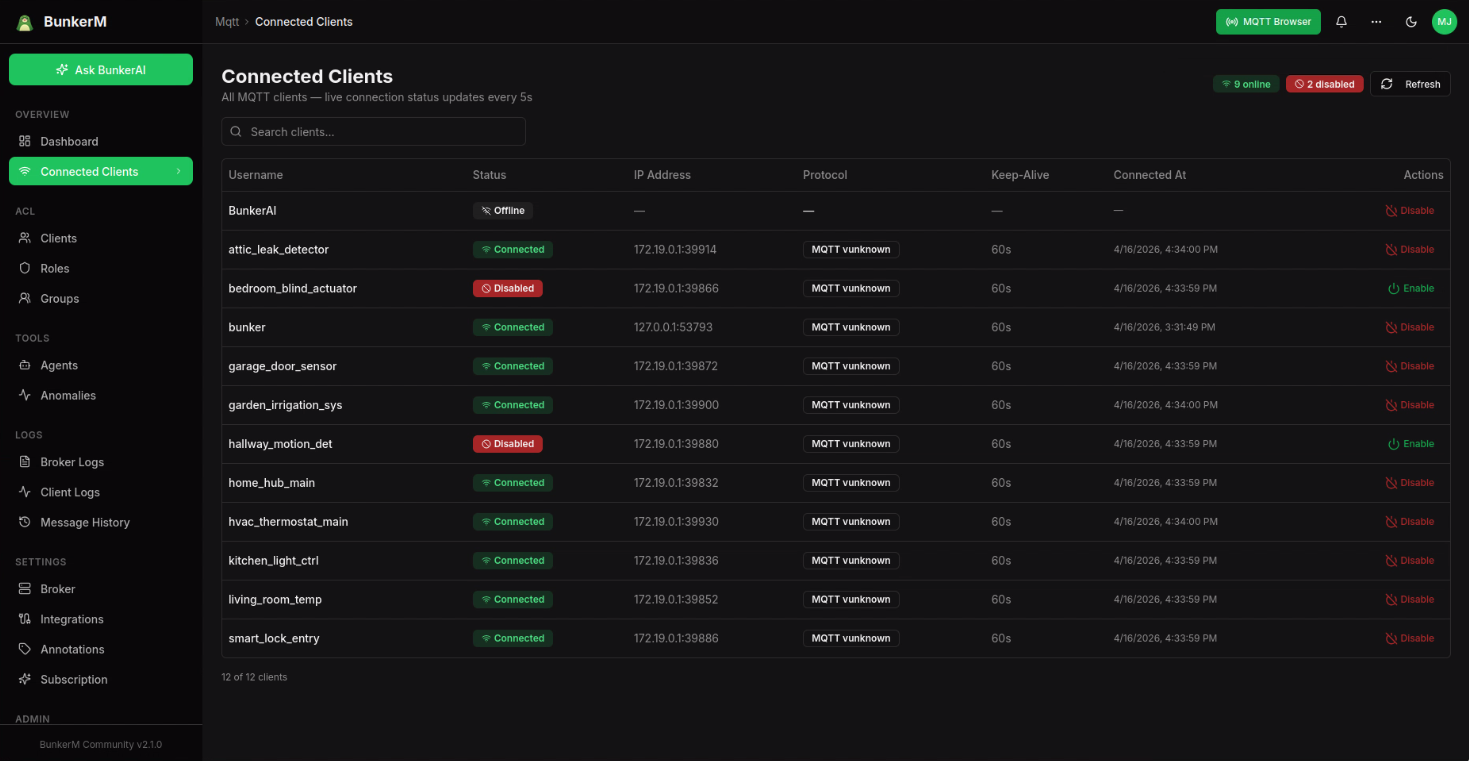
Rogue device publishing bad data. Compromised credentials. A client that needs to be isolated immediately during a firmware rollout. BunkerM lets you cut off or restore any MQTT client in one click from the Connected Clients dashboard, with no broker restart, no config file change, and no interruption to any other device on the network.
The Problem with Traditional Broker Management
Disabling a specific MQTT client in a standard Mosquitto setup requires editing the dynamic security JSON file, running mosquitto_ctrl from the command line, or restarting the broker entirely. None of these are fast. If a device is publishing garbage payloads at high frequency or you suspect a credential has been leaked, every second matters. A terminal session and a config file edit is not the right tool for that situation.
BunkerM solves this with a live control panel for every registered client. The Connected Clients screen shows you exactly who is connected right now, and lets you act on any of them immediately.
How It Works
The Connected Clients page, found under the Clients section in the sidebar, lists every MQTT client registered in Mosquitto's dynamic security plugin. For each one you can see whether it is currently connected, when it last connected, what topics it has been active on, and its current enabled status.
Each row has a toggle. Flip it off and Mosquitto immediately rejects any connection attempt from that client. If the client is currently connected, the broker drops the session. The change takes effect in milliseconds through the dynamic security API without touching any other client or requiring a broker restart.
Flip the toggle back on and the client can reconnect immediately. No manual step on the device side is required, it will reconnect on its next attempt using the same credentials it had before.
Real Use Cases
Isolating a misbehaving sensor
A temperature sensor on a production line starts publishing malformed payloads after a firmware update. The anomaly detector flags it. Instead of waiting for a maintenance window to pull the device or edit broker config, you open Connected Clients, find the sensor, and disable it in one click. The rest of the line keeps running. You fix the firmware, re-enable the client, and it reconnects automatically.
Responding to a suspected credential leak
You notice an unfamiliar IP address in the client logs connecting under a known client ID. You cannot immediately verify whether it is legitimate. Disabling the client cuts off access instantly while you investigate. When you have confirmed the credentials have been rotated and the device is yours, you re-enable it. The response time is seconds, not the minutes it would take to SSH into a server and run a command.
Staged device rollouts
You are rolling out a new firmware version across a fleet of 50 devices. You want to bring them online in batches to verify each group before enabling the next. Register all 50 clients in BunkerM with their credentials, but leave most disabled. Enable the first batch, verify their telemetry looks correct, then enable the next group. The entire fleet is pre-registered and ready, but you control exactly when each device joins the network.
Home automation maintenance
You are reconfiguring your smart home broker and need to test a new topic structure without interference from live devices. Disable the relevant clients from Connected Clients, run your tests, then re-enable everything. No device needs to be physically unplugged or reconfigured.
What Happens When a Client Is Disabled
When you disable a client, BunkerM calls Mosquitto's dynamic security disableClient command via the internal API. The broker immediately:
- Drops the active TCP session if the client is currently connected
- Rejects any new connection attempt from that client ID
- Preserves the client's credentials, roles, and group memberships exactly as they were
Nothing else in the broker is affected. Other clients continue publishing and subscribing without interruption. The disabled client's configuration is fully intact and re-enabling it is instantaneous.
Finding the Right Client
In a large deployment with many registered clients, the Connected Clients page includes a search field and status filters. You can filter by connected or disconnected, search by client ID or username, and sort by last seen time. Finding a specific device in a fleet of hundreds takes a few keystrokes.
Getting Started
The Connected Clients feature is available in the current BunkerM Community release. Pull the latest image and restart your container:
docker pull bunkeriot/bunkerm:latest
docker compose up -d
Open the web UI at http://localhost:2000, go to Clients, then Connected Clients. Every registered client is listed there with its current connection status and the enable/disable toggle.
Full documentation is at bunkerai.dev/docs/connected-clients.